
In order to use this functionality, Little Green Button must have access to Escalation by Group and Alert Type available with the Tree Plan or above. Alternatively please reach out to a member of our team to discuss.
This article describes how to use the Add on Feature of Escalation by Group and Alert Type for setting specific escalation paths depending on the group or a specific alert type. An example of this would be, if you wish to alert only nearby colleagues in a customer facing incident, vs alerting the entire building in the event of a fire.
Escalation by Group and Alert Type
In order to make this change, you will first need to log in to your MyLGB Portal and navigate to Groups, located within the "Configuration" tab, where you will have already configured your devices, locations and groups.
Select a group, and click "Escalation Levels"
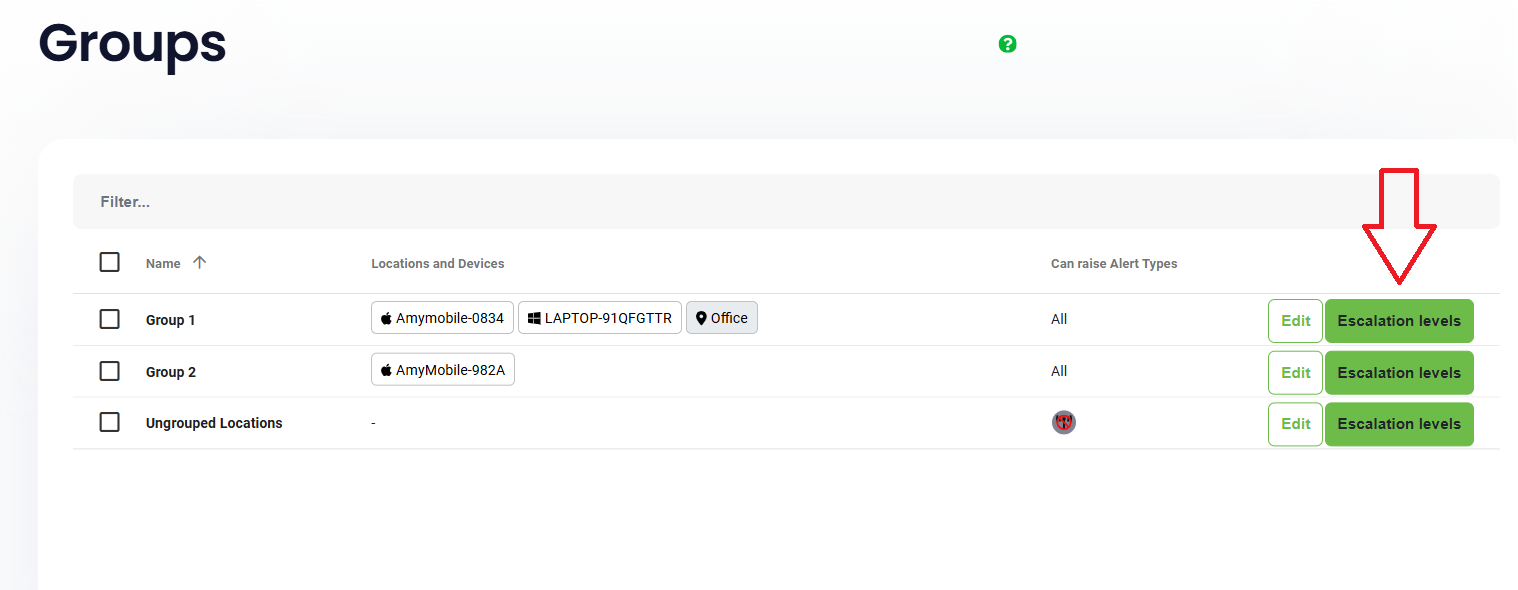
You will be taken to the below screen where you can customise your escalations.
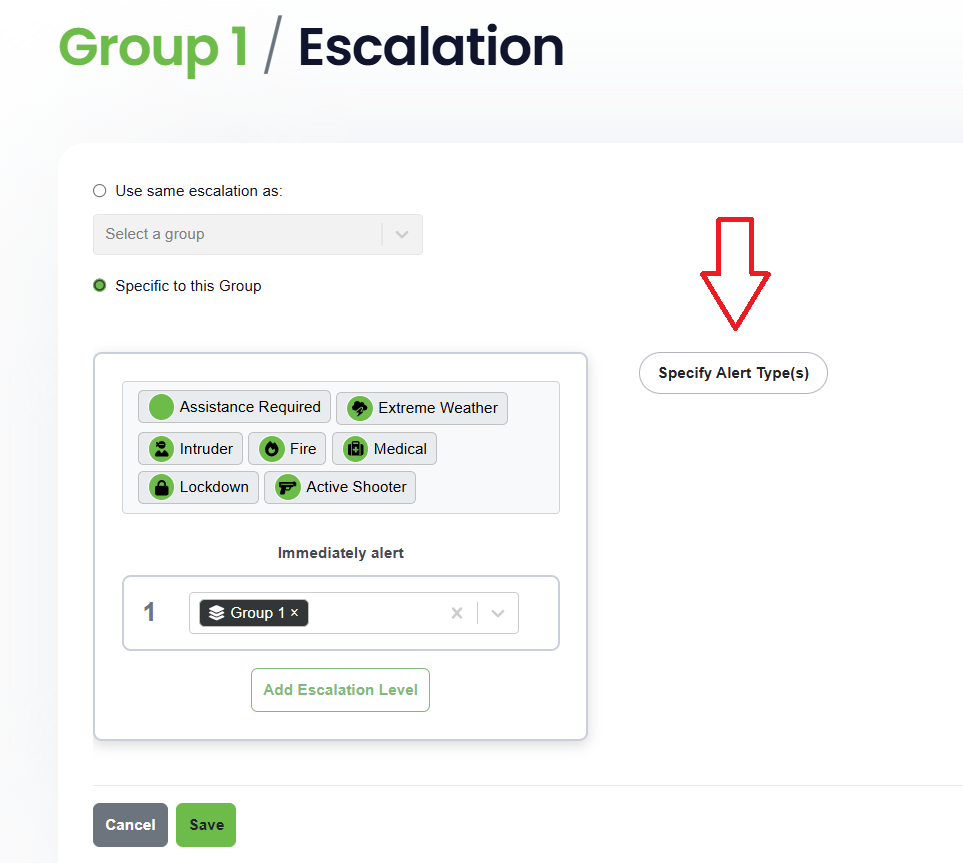
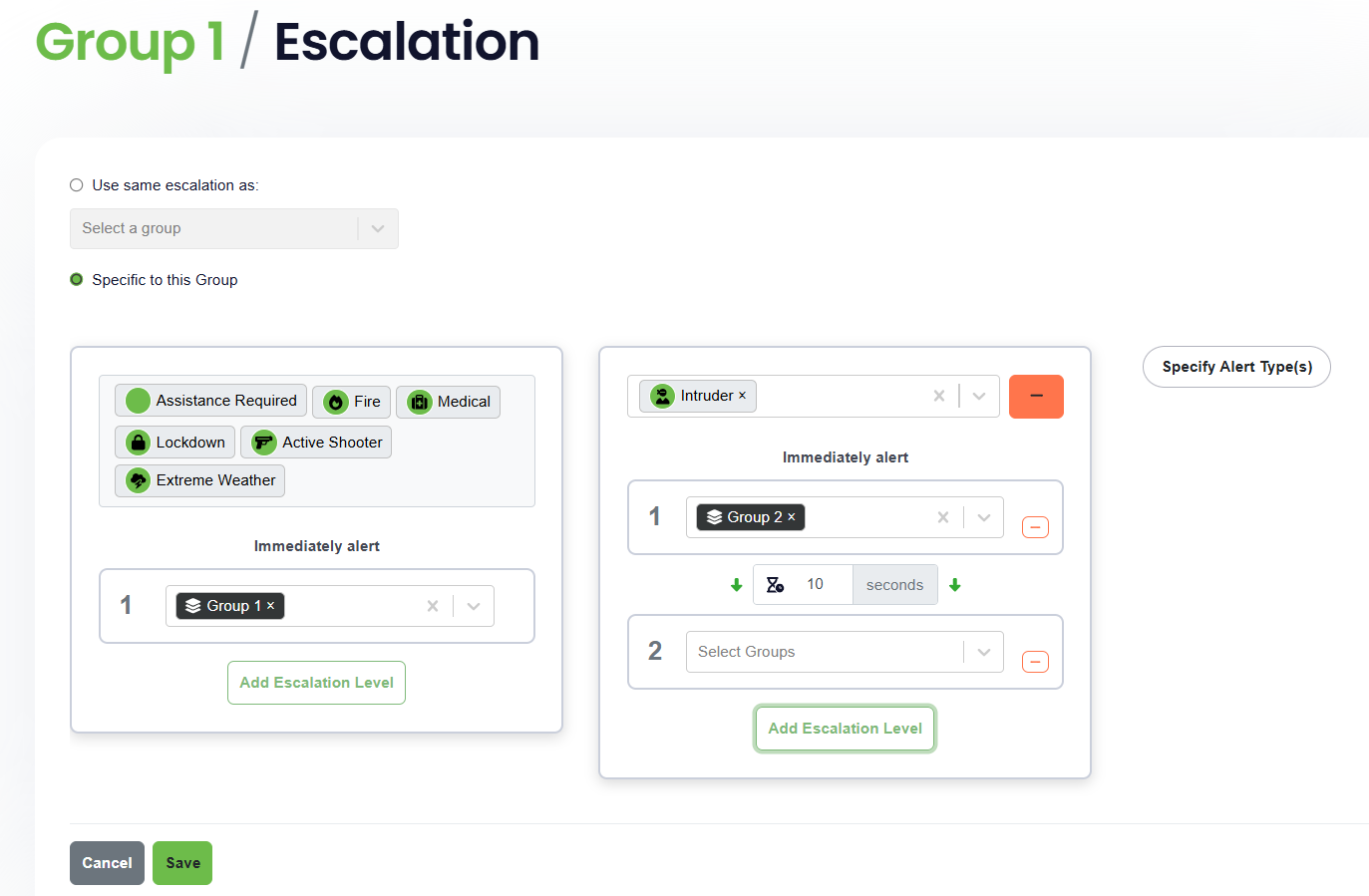
Note: As you create new escalation paths for each alert type, you will see them automatically disappearing from the very first "default" escalation.
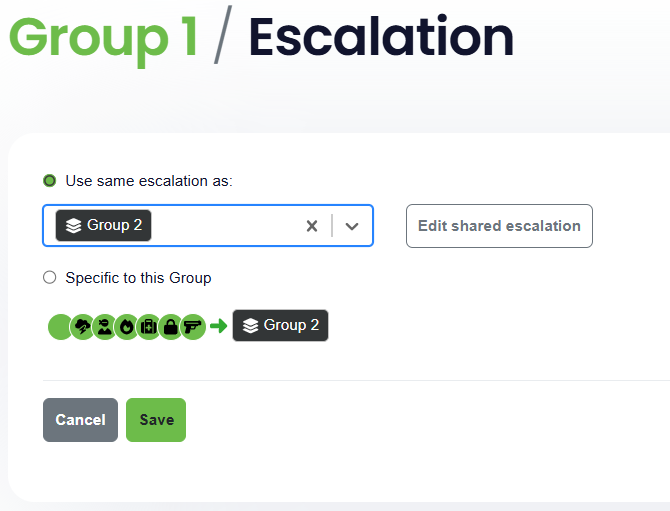
If you have already set escalations for a particular group and you would like to use the same path for the group you have selected, you can select "Use same escalation as ___" and choose from the drop down list
Once you have completed your escalation paths, click "Save" and publish your configuration changes.
Real-world configuration examples
To help you get the most out of Escalation by Group and Alert Type, here are some example real-life scenarios showing how escalation paths can be configured in different environments.
Healthcare
Patient Assistance vs Emergency
Scenario 1 - Patient Assistance required (non critical)
- Group: Ward
- Alert Type: Assistance Required
- Escalation Path:
- Level 1: Nearby Nurses in the same ward
- Level 2 (after 3–5 minutes): Ward Manager
This keeps the response targeted and avoids unnecessary disruption to other staff, while still ensuring backup if the alert is not acknowledged.
Scenario 2 - Medical Emergency
- Group: Ward
- Alert Type: Medical
- Escalation Path:
- Level 1: Emergency Response Team
- Level 2 (immediate or very short delay): All Clinical Staff in the building
- Level 3: On-call Specialists / Senior Staff
Critical alerts escalate rapidly to ensure immediate response without delay.
Education
Behaviour Incident vs Lockdown
Scenario 1: Classroom Behaviour Incident
- Group: Teaching Staff
- Alert Type: Assistance Required
- Escalation Path:
- Level 1: Nearby Teachers / Teaching Assistants
- Level 2 (after 2–3 minutes): Head of Year
- Level 3: Senior Leadership Team
Keeps the response local and proportionate, avoiding unnecessary alarm across the school.
Scenario 2: Lockdown / Critical Incident
- Group: Whole School
- Alert Type: Lockdown
- Escalation Path:
- Level 1: All Staff & Site Security
This ensures immediate, consistent communication across the site.